Device Properties
On the tab Properties you can edit general settings of a device.
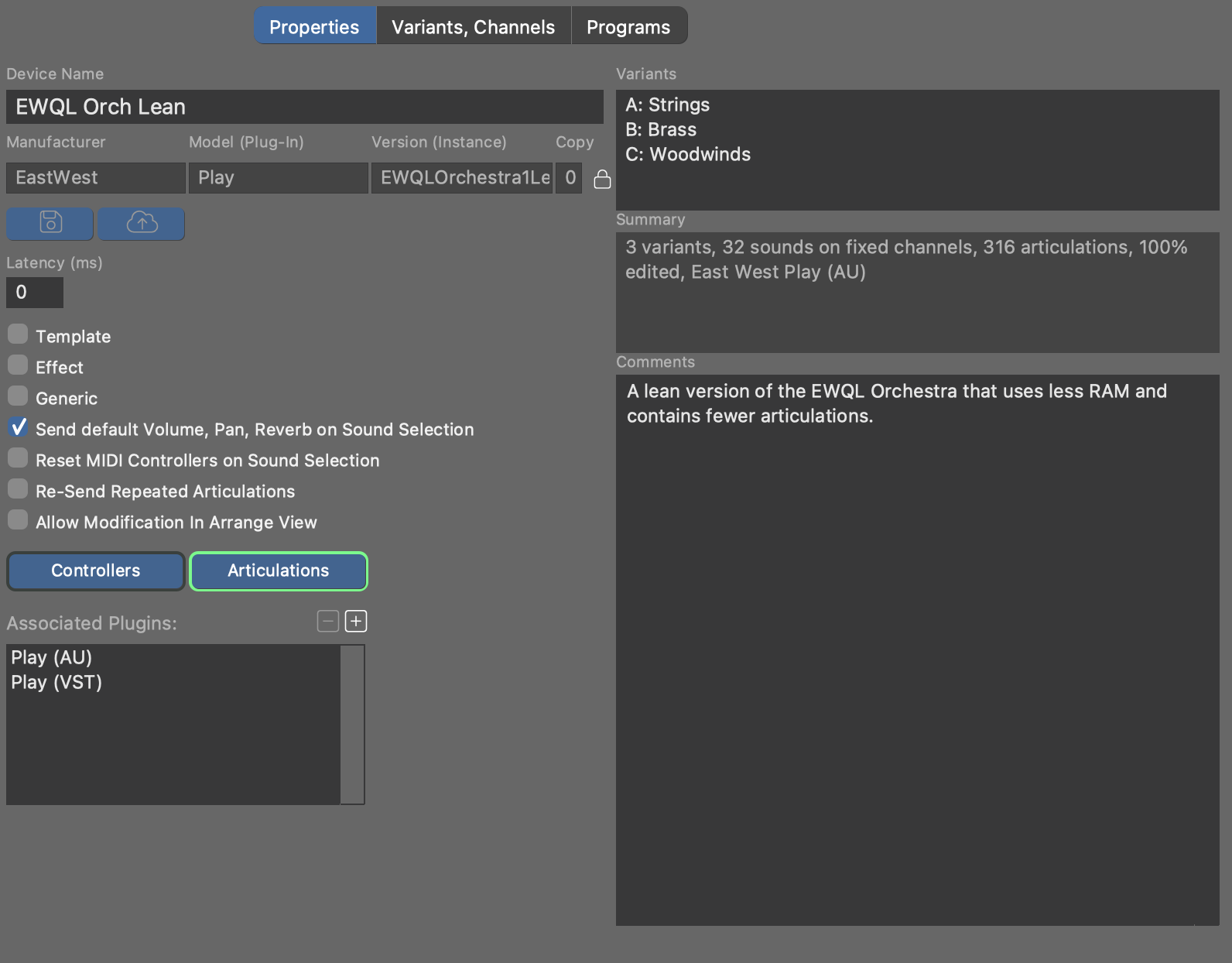
- Device Name
- The name of the device is used to display it on the list and elsewhere in the software. You can change this name at any time.
- Manufacturer
- This designation should contain a short name for the manufacturer, e.g.
NIfor Native Instruments, orYAMAHA. Please always use exactly the same name for the same manufacturer. - Model (Plug-in)
- Name of the hardware model or plug-in:
JV2080,MU90R,EWQLPlay,Kontakt6, etc. - Version (Instance)
- In case it's a plug-in, put a designation for the loaded preset here that is
described by the device description:
My Orchestra
                            Kit
, orMisc Basses. You can leave this empty for hardware synthesizers. - Copy
- This number is incremented every time a device is copied or cloned. It is for your information only, so you can determine which of multiple copies of a device is probably the most current.
- Latency
- Enter a value in milliseconds by which MIDI data shall be sent ahead of time in order to compensate for the device's latency.
- Template
- Check this box, if this device description is supposed to be a Device Template.
- Effect
- Check this box if the plug-in or hardware is an effects processor.
- Generic
- Indicates this device was created automatically when one was needed, in order to serve as a starting point. You may remove this box and edit the device to fully suit your needs.
- Send Default Volume, Pan, Reverb on Sound Selection
- Whether to automatically send Volume, Pan, Reverb and other mixing-related CC whenever a sound is selected. Disable this if Synfire shall not interfere with a mix you manually set up in your DAW or with external hardware.
- Reset MIDI Controllers On Sound Selection
- Some devices require that MIDI CC be reset to default values after a new program/patch was selected. If you notice that your device is behaving strangely with respect to sustain pedals, pitch bend or modulation, you may need to check this option.
- Re-Send Repeated Articulations
- Send Articulations every time, regardless whether the previously sent articulation has not changed.
- Allow Modification In Arrangement
- Whether you want the Instrument Inspector of an arrangement to show the full details of the sound you selected for an instrument. Although this spares you a visit to the device editor on the Sounds page, it adds a lot of information that might distract you. This option is always disabled for global (shared) devices.
- Custom Controllers, Articulations
- Edit the Custom Controllers or Custom Articulations available for this device.
Updating an Embedded Device
If a device was originally copied into the arrangement, you can update it to the current version of the Global Device Description. This imports a new copy into the arrangement.
Variants
For most devices a single variant with 16 MIDI channels is sufficient. For
comprehensive sound libraries, you may want to add up to four Variants
A, B, C, D. Each variant represents a different configuration,
operation mode, or preset of the same device and supports up to 16 MIDI
channels.
The advantage of using variants versus creating multiple devices is that Custom Controllers, Articulations and device properties need only be defined once for all variants.
Channel Types
- Fixed Sound
- A single sound is permanently addressed on this channel. Its properties can be set using the inspector on the sidebar.
- Dynamic Program Selection
- An arbitrary program or patch of the device is selected by sending a MIDI bank and program selection message. The list of available sounds is managed on the tab Programs.
- Reserved Channel
- On this channel only those sounds can be selected that have the same channel number set as their reserved channel (for example, this is the case for GM drum kits that require channel 10). These sounds are also managed on the tab Programs.
Multiple channel types can be mixed in the same variant. If a device has multiple variants with dynamic channels, Synfire considers all of them for sound assignments equally.
A green indicator labeled Used indicates whether a channel is currently in use by one or more instruments, which are listed on the sidebar for your information.